


Macs are designed with safety in mind. Apple takes great care in providing maximum security for all their products. However, no system is perfect. When it comes to spotting viruses on your Mac, you’ll have to be knowledgeable in both the signs to watch for and the tools to leverage.
The article below will guide you through the whole process. You will get to know the signs that will help you to detect the issues. You will use the built-in tools offered by macOS to get rid of any potential threat without guessing what is going on.
Is Malware on Mac Really a Problem in 2026?
Indeed, this issue is increasing. Backdoor malware that targets macOS has risen significantly over the past year. Stealer malware has also dramatically increased. Cybercriminals are aware that people generally have more faith in Macs, which makes Mac users more vulnerable. Apple, however, continues to provide strong security. XProtect automatically scans files. Gatekeeper prevents unsigned software from running. Notarization ensures that the software developers are legitimate. These techniques are able to protect many forms of malware from entering the system, but new malicious software programs are released nearly weekly.
As a result, continuous action must be taken on behalf of the computer system, and it is not advisable to only wait until an error occurs to follow the procedure.
Signs Your Mac May Have Malware
Malware isn’t always easily detected. Some viruses are dormant for days, or even weeks, before they appear while some others may appear right away. Look out for the following symptoms:
- Your Mac may become slow. Malware might consume your CPU and RAM.
- Your homepage has changed without you doing anything at all. There could be a browser hijacker behind this.
- You now see an unusual number of ads and popups than you are used to. This may be caused by adware.
- Before performing any scans, there are fake “security alerts” that appear. Scareware is the name given to these programs that are meant to frighten the user into taking action.
- This is probably why your friends receive spam through your email address or social accounts. This can happen if malware is imitating you.
- You open files, and you find a ransom note. This can indicate that you may be infected with ransomware or a trojan.
- Your battery is dying faster and faster. This may suggest background processes running without your consent.
Upon spotting two or more signs that are referred to above, it is important to take corrective measures by monitoring your computer’s status.
How to detect whether malware has infected a Mac system: A stepwise explanation
Follow the steps below as they are laid above, as each step will consider a separate means of hiding malware.
Step 1: Check for unusual processes using Activity Monitor
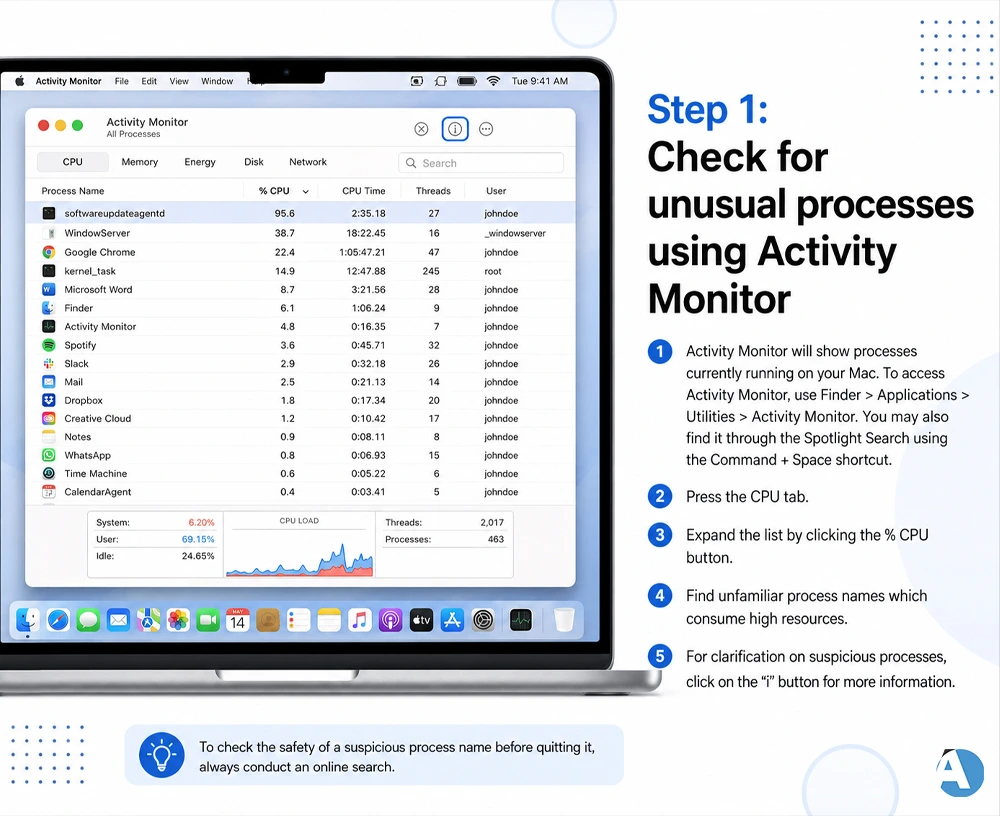
- Activity Monitor will show processes currently running on your Mac. To access Activity Monitor, use Finder > Applications > Utilities > Activity Monitor. You may also find it through the Spotlight Search using the Command + Space shortcut.
- Press the CPU tab.
- Expand the list by clicking the % CPU button.
- Find unfamiliar process names which consume high resources.
- For clarification on suspicious processes, click on the “i” button for more information.
To check the safety of a suspicious process name before quitting it, always conduct an online search.
Step 2: Review Your Applications Folder
Malware often installs alongside real software.
- Open Finder, then click on Applications.
- Arrange the list according to Date Added in descending order.
- Check if there are any new apps that you didn’t install or aren’t familiar with.
- Drag the unwanted apps into Trash.
- Clear the Trash to completely delete them.
Step 3: Inspect Login Items and Profiles
Malicious software is known to run in stealth mode each time you log in.
- Click on the Apple icon, and then proceed to System Preferences.
- From there, select General, and then click on Login Items.
- Look at the list of items that open at login.
- Delete anything you do not remember adding yourself.
- Next, scroll down to Profiles, and if you have a profile that you do not remember adding, delete it.
Unknown profiles are an indication that something nefarious is happening, as they could change your browser’s settings or could change your computer’s configuration without notice.
Step 4: Check Your Downloads Folder
In order for malware to operate on your Mac, it must first be downloaded to your computer.
- Access your Downloads folder.
- Identify any suspicious files and press the Space key to review the file you want to use before opening it.
- Erase all files that you do not know.
- Transfer the files you want to keep to another folder.
Submit your junk files to the Trash afterwards and make sure that you toggle off the ‘Open safe files after downloading’ feature on your Safari browser.
Step 5: Examine Your Browser Extensions and Settings
- When a browser hijack happens, it is one of the most apparent signs of malware infection.
- Start by checking browser settings and the browser extensions you currently have.
- Remove the extensions that you have not installed personally.
- Review your homepage and search engine, and reset them if they were altered without your permission.
Be sure to do the same for your other browsers on your Mac.
Step 6: Run a Trusted Malware Scanner
Most problems are detected using manual verification, but a scanner is added as an extra measure of security. When selecting the scanner, make sure you are getting it from a trustworthy source that has received good reviews. Don’t go ahead and download the first “fix” program that pops up in your search engine’s search results, as some of those programs will be viruses in themselves.
You should perform a complete scan and follow the given removal instructions. If you see a file with an unfamiliar name, you need to research that file further.
What to Do If Malware Is Detected on Your Mac
Once the malware is confirmed on your machine, you have to take immediate action.
- First, unplug the internet from the computer to prevent the malware from transferring data or downloading additional malware.
- Avoid entering passwords as keyloggers might still trace all your keyboard activity.
- Boot into Safe Mode, which prevents most types of malware from starting during the boot.
- After you clear the device, change your passwords, starting with your Apple ID and bank accounts.
- If you have a Time Machine backup that is free of malware, restore it to the device.
- If you have submitted credit card information on an illicit application or site, let your bank know about this.
As a last resort, clean wipe your device and reinstall macOS.
How to Stay Away from Malware on Mac in Future
Although malware scanning is necessary, most helpful would be to prevent malware occurrence.
- Download software from the App Store and other authorized sites only.
- Regularly update your macOS and any applications you use since updates fix any vulnerabilities hackers can take advantage of.
- Do not open email attachments from people you don’t know.
- Never click on links provided in undesired pop-ups, no matter if they claim to be from Apple.
- Always use strong and unique passwords for all your accounts and services.
- Backup your Mac on a regular basis with the help of Time Machine or cloud services.
These simple practices can eliminate all kinds of threats before they can reach your computer.
Final Thoughts
It does not require expert technical skills to understand the process of checking for viruses on your Mac. The following – the Activity Monitor, Applications folder, Downloads folder and Login items in the system Preferences – will take care of considerable danger.In case you are willing to have additional protection, you may connect it to a reliable scanner and make sure your system works properly and is updated from time to time in order not to face new troubles.
FAQs
Certainly, macOS features its unique software solutions that provide XProtect, Gatekeeper, and notarized applications. These solutions should be used against the majority of viruses but it is necessary to regularly check your system anyway.
Monthly scans are good for ordinary users. In case you noticed that the speed of your computer decreased dramatically or there is some new marketing promotion appearing in your browser you should scan your Mac.
Definitely! You can use the Activity Monitor and all necessary means to detect and remove viruses on your PC through the Applications, Login Items, and Downloads folders. Even though paying antivirus might guarantee a better protection this is usually unnecessary.
