


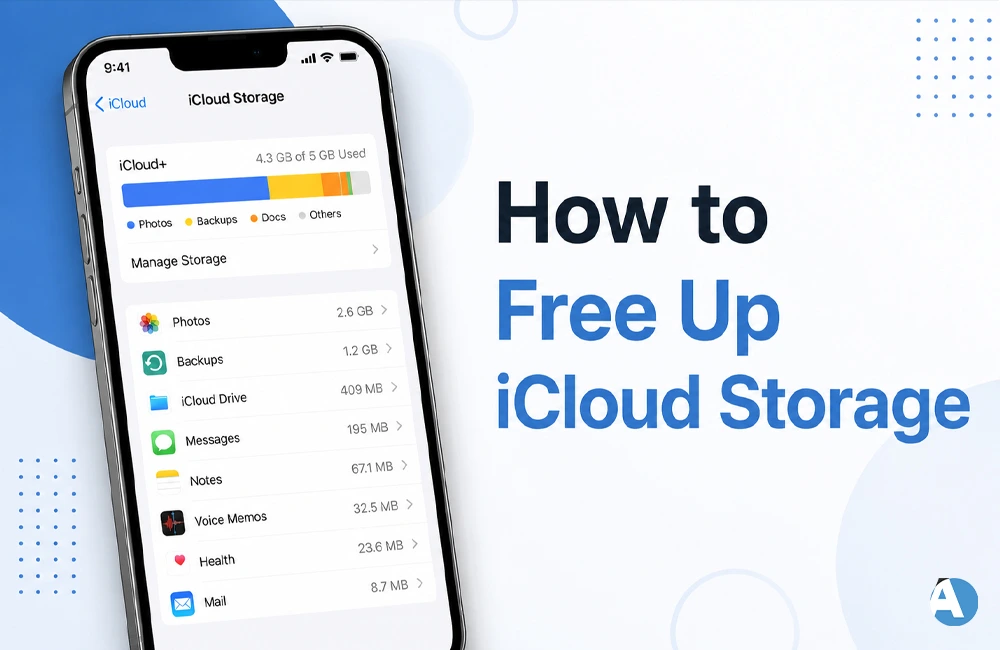
You have backed-up half of the photos and then you see “iCloud Storage Full” again. No matter, Apple is giving you 5GB for free, and that’s never enough — when you’ve got 4K videos, WhatsApp chats and 3 years’ worth of iPhone backups all vying for the same precious space.
Before you run off to the wallet, here’s a trick! With just a few clicks, the majority of users can free up 3 or 4 gigabytes of data in less than 15 minutes by simply deleting data that is present. The places in which to look.
Determine what is occupying the space before filling it up
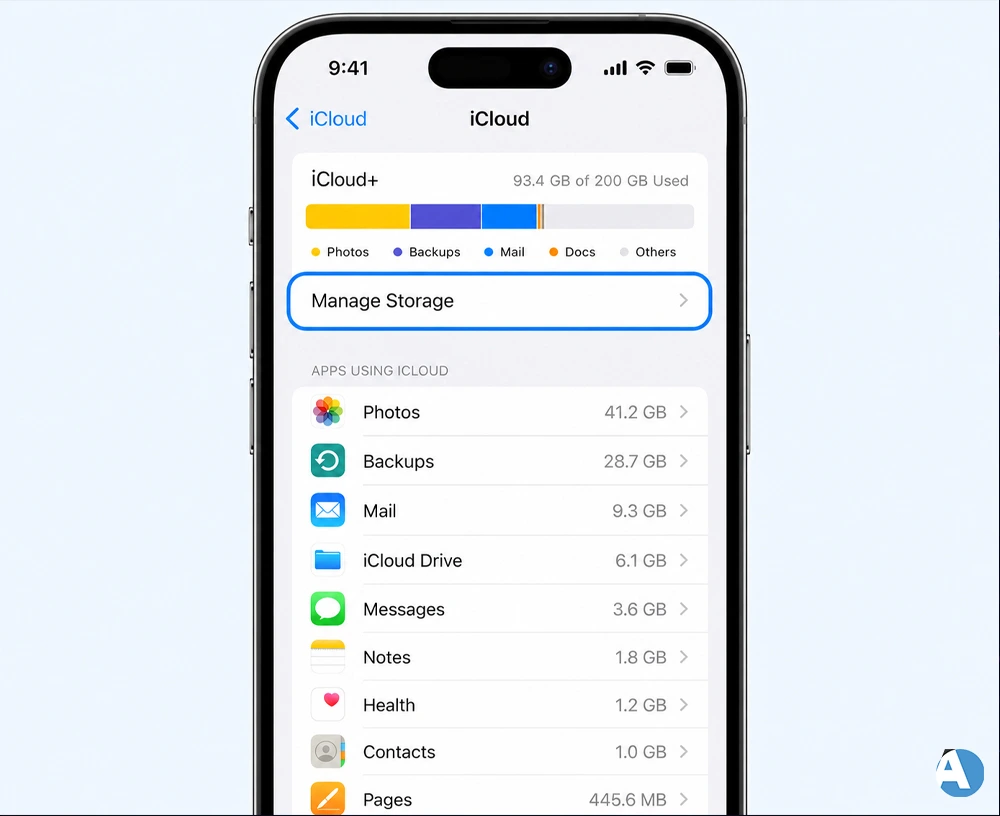
Don’t guess. Tap Settings > [your name] > iCloud > Manage Storage. It is categorized by app and by category, so you’ll know right away if it’s Photos, Backups or Mail that are the culprit.
This will help you to avoid deleting the wrong items in one stroke.
1. Go Through Your Photos Library
The most common is photos and videos. Open the Photos app, and tap Albums, then scroll to the bottom to the Utilities section. When you take a look at there’s a folder called Duplicates — It’s actually interesting because there’s all the years of double tapping.
Also check Recently Deleted. iPhones store “deleted” photos in its storage for 30 days before they’re actually deleted, meaning that “deleted” photos continue to take up space in the storage. If still required in the present situation, manually delete all the files in that folder.
2. Turn Off Backups for Apps You Don’t Care About
By default, all applications are backed up – even those used on the phone, but not in the current year. Tap your name on Settings and select iCloud > Manage Storage > Backups, then you will be able to see a toggle for each app when you tap your device.
Shut off the ones that you don’t need synced – games, one shot apps, whatever you’re fine losing. This will not delete the app, just the backup data associated with it.
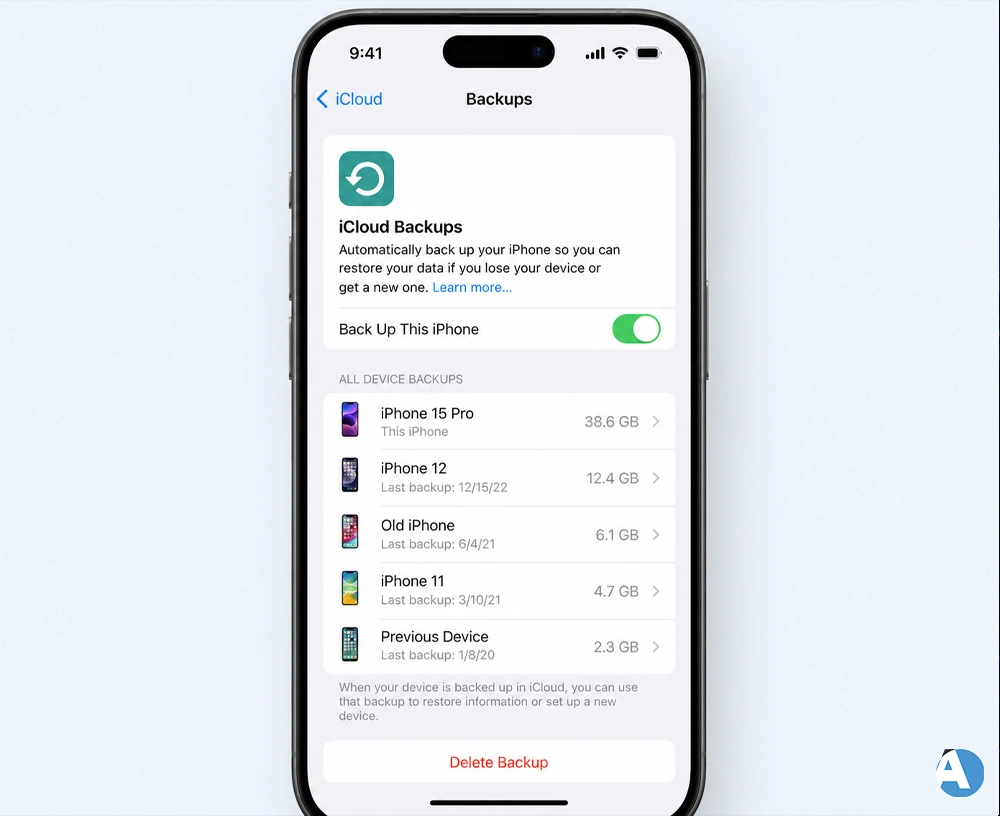
3. Remove Backups from previous devices
With a couple of phone upgrades, it’s likely you have some old backups on phones you no longer have in your account. SCROLL DOWN TO DEVICES NOT RECOGNIZED OR NOT USED, TAP IN EACH ONE AND TO DELETE BACKUP.
This single maneuver can provide you greater space than all the other movements combined!
4. Remove old emails from your iCloud mail
All email and attachments will count against your limit for those who use the @icloud.com email address. Open up the mail, swipe them off everything that you don’t need and delete them. Next, click on the Trash folder, where the deleted e-mail messages will be until you delete them, click Edit and Delete All.
If the heavy files are urgent, search in your e-mail for the word “invoice” or “attachment”.
5. Clean Up iCloud Drive
Home for pages, numbers and keynote documents and PDFs. To delete files from iCloud Drive, navigate to Settings, select [your name] > iCloud > iCloud Drive > Manage Storage and swipe left to delete files. On the Mac, it’s easy to see the space bloaters: just open Finder, choose iCloud Drive, and sort by size.
6. Decide If You Need Messages Synced
iMessage by default syncs to all your devices, and will accumulate a lot of photos and voice notes over the years. If you don’t need to sync your messages across devices, then choose Settings > [your name] > iCloud and turn off the Messages setting.
Save anything important first (screenshots, old conversation etc — anything you would miss out if you did not save it).
7. Use “Optimize iPhone Storage” (With a Catch)
It will save all the pictures in iCloud and download smaller versions to your phone under Settings > Photos. This is helpful for freeing up space on your device, but you won’t consume any iCloud storage by deleting the full-resolution versions from the device, since those will still be stored in the iCloud.
To get the iCloud space back, you must move your originals back to a laptop, and remove them from iCloud completely.
8. Clear and delete Old Voicemails and Voice Memos
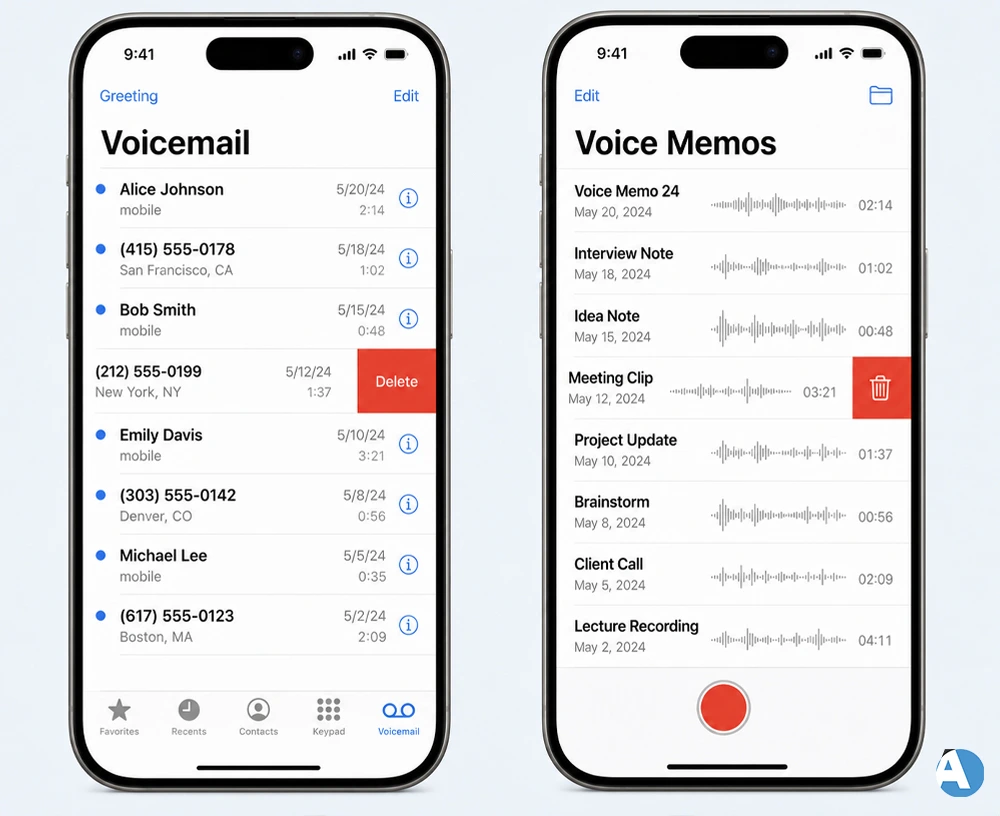
Small and inconspicuous and compounding. Clear it out in Open Phone > Voicemail. Repeat this in Voice Memos. Only 2 minutes and synced automatically to iCloud – even if you forget them.
9. Review Notes for Hidden Attachments
All of these things taken individually are nothing particularly remarkable, but over the course of a few years, the notes can accumulate a gigabyte or two of scanned documents, sketches, screenshots. It deserves 5 minutes worth of scrolling.
10. Limit WhatsApp’s Own Backup
It’s the backup that holds your data outside of the device backup, in iCloud, and one that nobody really uses. Open WhatsApp, select Settings – Chats – Chat Backup and either switch it off or extend the frequency of backup. This can save you a few gigabytes, if you have a lot of photos and videos from your chats.
11. Allow third-party apps to be accessed from their own iCloud Storage
Now in Manage Storage, you’ll find individual apps listed separate from each other, including WhatsApp, or some note-taking and file apps. Before deleting, try to get access to anything new that’s there and find out what it is.
Where to Start If You’re Short on Time
| Biggest space users | Fastest fix |
| Photos & videos | Empty Recently Deleted, remove duplicates |
| Old device backups | Delete backups you don’t recognize |
| Turn off or reduce chat backup | |
| Messages | Turn off sync if not essential |
| Empty the Trash folder |
Does It Make Any Sense To Pay More For Storage?
Honestly, sometimes yes. When you’re creating lots of videos or running your business with your phone, an hour every few months getting rid of files is a waste of your time. The paid options are okayly priced and 50GB should be sufficient to completely forget about this. Cleanup can be done for free — but so can your time!
Final Word
Typically, you won’t be charged any more money to Apple if you receive the message about your iCloud storage. It’s just a hint that the account has not been used for a while. Remove photos and old backups as they consume a lot of space and then proceed to remove emails, messages, and WhatsApp.
Do this periodically and this message will disappear.
Frequently Asked Questions
When an image gets erased from an iPhone, it actually goes to the Recently Deleted folder where it will remain there for a period of thirty days. If you wish to free up space quickly, you can just delete the images that are transferred to that folder.
However, this idea does not hold true completely. If the application has been erased from the smartphone but its content is still existing in iCloud, the iPhone will be visible there, based on whether its device has been removed from the iCloud site as well.
All Data is provided. All data like photos, backups, email, applications, etc which are available in all the devices signed in to that Apple ID.
