


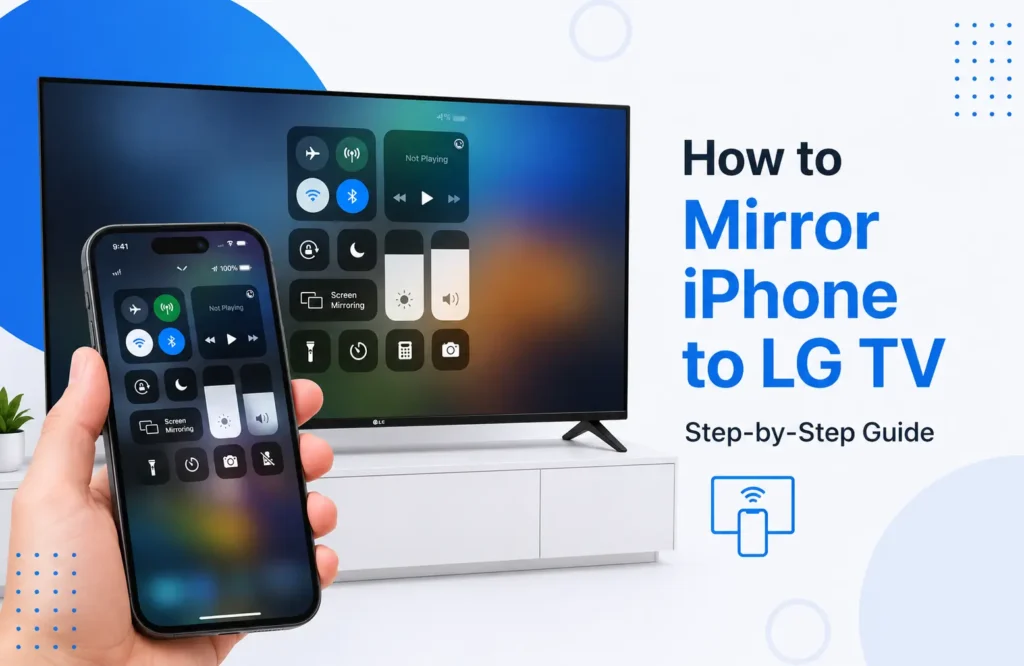
Having knowledge of How to Mirror iPhone to LG TV enables one to see photos, videos, slideshows, websites, applications on a bigger screen. In LG smart televisions that can support mirroring, the easiest method will be Apple AirPlay which is wireless and does not need any additional streaming device. If AirPlay is not available, you may use HDMI connection.
Can You Mirror an iPhone to an LG TV?
Yes. Many LG smart TVs support AirPlay, which allows an iPhone to mirror its full screen or send supported photos and videos directly to the television.
Screen mirroring copies almost everything shown on the iPhone display. AirPlay streaming works differently because it sends supported media to the TV while the iPhone acts more like a controller.
Support varies by LG model and webOS version. If AirPlay is missing from the TV settings, check the model specifications before assuming something is wrong.
What You Need Before Mirroring
A few quick checks can prevent most connection problems.
Make sure:
- The LG TV supports Apple AirPlay
- AirPlay is enabled on the TV
- The iPhone and LG TV are connected to the same Wi-Fi network
- Both devices are running reasonably current software
- The TV and iPhone have a stable network connection
If the home uses separate guest and main Wi-Fi networks, connect both devices to the same network. Some routers prevent devices on different network segments from finding each other.
How to Mirror iPhone to LG TV Using AirPlay
For most compatible LG televisions, AirPlay is the fastest and easiest method.
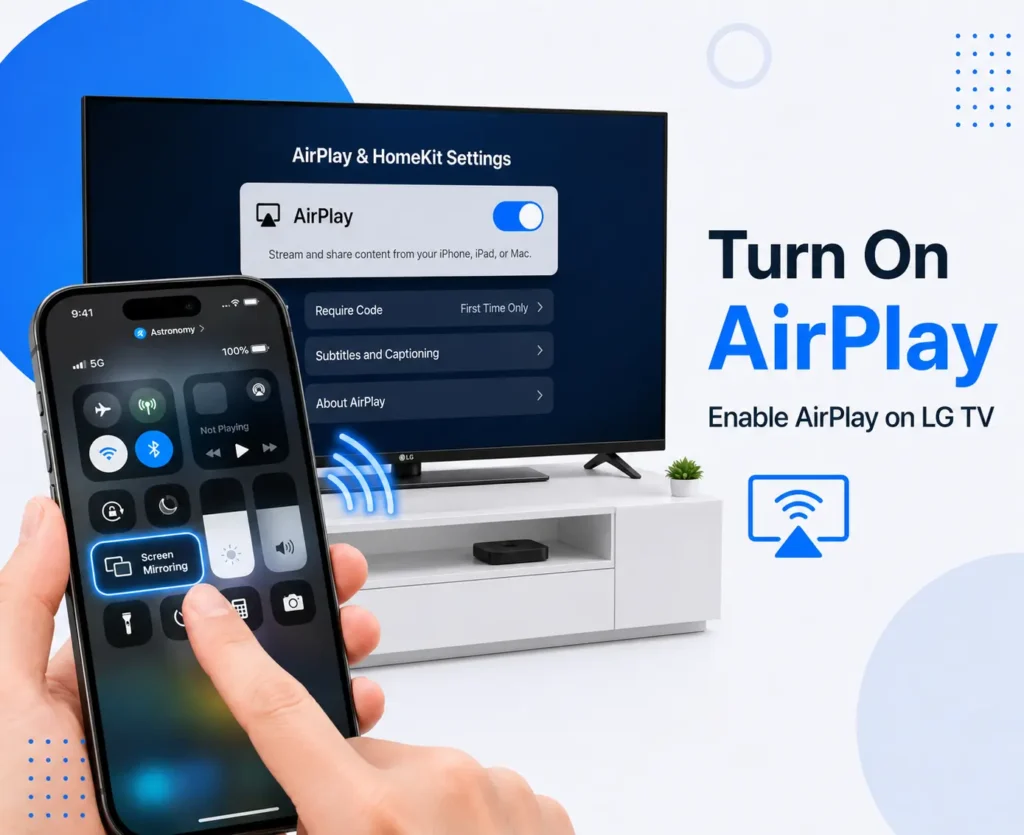
Step 1: Turn On AirPlay
Turn on the LG TV and confirm it is connected to Wi-Fi. Open the television settings and make sure AirPlay is enabled.
The exact location of the setting can vary between LG models and webOS versions.
Step 2: Open Control Center
On newer iPhones, swipe down from the upper-right corner of the screen to open Control Center.
On older iPhone models that use the previous Control Center layout, swipe up from the bottom of the screen.
Step 3: Tap Screen Mirroring
Tap Screen Mirroring, shown with two overlapping rectangles.
Your iPhone will search for nearby AirPlay-compatible devices.
Step 4: Select the LG TV
Choose your LG television from the device list.
If several TVs appear, select the correct device name. Renaming televisions by room, such as “Living Room LG,” can make this easier in homes with multiple smart TVs.
Step 5: Enter the AirPlay Code
The LG TV may display an AirPlay passcode the first time it connects.
Enter that code on the iPhone. Once accepted, the iPhone screen should appear on the television.
To stop mirroring, open Control Center, tap Screen Mirroring, and choose Stop Mirroring.
Stream Photos and Videos Instead
Full screen mirroring is not always necessary. AirPlay can also send supported media directly to the television.
For photos, open the Photos app, choose an image or video, tap the Share button, and select AirPlay when available.
For supported video apps, look for the AirPlay icon or check the playback menu. Streaming individual content can be cleaner than mirroring because menus, notifications, and other iPhone activity do not appear on the TV.
How to Mirror iPhone to LG TV Without AirPlay
If the television does not support AirPlay, a wired connection is usually the most dependable alternative.
Connect the iPhone to the TV using a compatible video adapter and HDMI cable:
- Attach the correct adapter to the iPhone.
- Connect an HDMI cable to the adapter.
- Plug the HDMI cable into the LG TV.
- Select the matching HDMI input on the television.
- Wait for the iPhone display to appear.
Lightning-equipped iPhones can use a compatible Lightning Digital AV Adapter. USB-C iPhones can use a suitable USB-C-to-HDMI adapter or cable when external video output is supported.
An Apple TV device is another option. Connect it to the LG television through HDMI, place it on the same Wi-Fi network as the iPhone, and select Apple TV from Screen Mirroring.
AirPlay vs HDMI
Both options work well, but they suit different situations.
| Feature | AirPlay | HDMI |
|---|---|---|
| Connection | Wireless | Wired |
| Wi-Fi required | Yes | No |
| Extra hardware | Usually no | Adapter and cable |
| Mobility | Excellent | Limited by cable |
| Stability | Depends on Wi-Fi | Usually very stable |
| Best for | Photos, videos, casual use | Presentations, poor Wi-Fi, lower delay |
AirPlay is more convenient around the home. HDMI is often better when network reliability matters more than wireless freedom.
Why Your LG TV Does Not Appear
If the LG TV is missing from Screen Mirroring, first check that both devices are on the same Wi-Fi network.
Next, confirm that AirPlay is enabled and restart both devices. Updating the iPhone and LG TV can also solve compatibility issues.
If the television still does not appear, check whether the router uses guest-network isolation or similar settings that prevent devices from discovering each other.
Why the Screen Is Blank
Sometimes the iPhone connects successfully, but a specific video does not appear.
This can happen because some apps or streaming services restrict screen mirroring or AirPlay playback. Protected content may show a blank screen even though the iPhone interface mirrors normally.
Test with the Home Screen, Photos app, or another basic source. If those display correctly, the problem is likely related to the app rather than the TV.
For streaming services, using the official LG TV app may provide a better experience.
Why Mirroring Keeps Disconnecting
Frequent disconnections are often linked to Wi-Fi quality.
Weak signal strength, network congestion, or an overloaded router can interrupt AirPlay. Move the devices closer to the router, reduce heavy network use where possible, and restart the router if other devices are also having connection problems.
For important presentations or long viewing sessions, HDMI can remove wireless instability from the setup.
Best Method for Different Uses
The right method depends on what you are displaying.
- Photos and family videos: AirPlay
- Presentations: AirPlay or HDMI
- Streaming services: Native LG app or supported AirPlay
- Older LG TVs: HDMI adapter or Apple TV
- Unstable Wi-Fi: HDMI
- Gaming: Wired connection when lower delay matters
AirPlay is usually the best starting point, while HDMI works well as a practical backup.
Choosing the Best Mirroring Method
For most compatible TVs, How to Mirror iPhone to LG TV is straightforward: connect both devices to the same Wi-Fi network, open Control Center, tap Screen Mirroring, and select the LG TV. AirPlay is ideal for quick wireless sharing, while HDMI is the better fallback for older televisions, unstable networks, or situations where a consistent wired connection is more important.
FAQs
Can I mirror an iPhone to an LG TV without Apple TV?
Yes. If the LG television has built-in AirPlay support, an Apple TV device is not required.
Can I mirror my iPhone without Wi-Fi?
Yes. A compatible HDMI adapter and cable can connect the iPhone directly to the television without using Wi-Fi.
Why is my LG TV not showing in Screen Mirroring?
Make sure AirPlay is enabled and both devices are connected to the same Wi-Fi network. Restarting and updating both devices may also help.
Why do some apps show a black screen?
Some apps restrict AirPlay or external-display playback. Try the service’s official LG TV app if available.
Do all LG Smart TVs support AirPlay?
No. AirPlay support depends on the LG model and software generation.
